
Help centre

Your questions answered

  • XBO - Image What currencies does Equals Money support?

    The Equals Money account supports multiple currencies. Some currencies can be used for certain features only.

    The Equals Money account offers a multi-currency IBAN, which supports the following 38 currencies:

    AED, AUD, BBD, BGN, BHD, CAD, CHF, CZK, DKK, EUR, GBP, GHS, HKD, HUF, ILS, JPY, KES, MWK, MXN, NOK, NZD, OMR, PHP, PKR, PLN, QAR, RON, SAR, SEK, SGD, THB, TND, TRY, TTD, UGX, USD, ZAR, ZMW.

    The 21 card-supported currencies are:

    GBP, EUR, USD, AED, AUD, CAD, CHF, CZK, DKK, HKD, HUF, ILS, JPY, NOK, NZD, PLN, RON, SEK, SGD, TRY, ZAR.

    If you hold a balance in any of these card currencies, you can use it to make card payments without an exchange.
    You can also use your card for payments in other currencies, as long as Mastercard payment is accepted. There is 1.5% out of currency fee for card transactions in currencies other than the 21 above.

    Outbound wire payments can be made in the following 61 currencies:

    AED, AUD, BBD, BDT, BGN, BHD, BWP, CAD, CHF, CNY, CZK, DKK, ETB, EUR, GBP, GHS, GMD, HKD, HUF, ILS, INR, JOD, JPY, KES, KRW, KWD, LKR, MAD, MGA, MUR, MWK, MXN, MZN, NGN, NOK, NPR, NZD OMR, PGK PHP, PKR, PLN, QAR, RON, RWF SAR, SEK, SGD, THB ,TND, TRY, TTD, TZS, UGX, USD, XAF, XCD, XOF, ZAR, NAD, ZMW.

    You can find all our available currencies here.

  • XBO - Image Changes to the sign in page

    The design and URL of the sign in page has changed. This change allows us to introduce more security measures to protect your account. You can read more about these changes here: https://equalsmoney.com/blog/updates-to-the-way-you-sign-in

    Any bookmarks you had will automatically redirect to the new URL, which begins auth.equalsmoney.com. Please check the URL of the page you are on to ensure it is correct. If you are in doubt about a page, please contact us directly.

  • XBO - Image Adding people and setting roles

    How to add a new person to your account

    Owners and admins can add people to the account. To add a new person to your Equals Money account, please sign in and go to the “People” page of your account. At the top of this page, you’ll see a button that says “+ Add People”.

    Once you click on this, you’ll be asked to add some information about the person you wish to add. We’ll need to know their name, email address and you’ll need to assign them an account role.

    Roles

    You can assign one of the following roles:

    Primary owner

    Your company account must always have an active Primary owner. Only one person within your company can hold this at any given time. The Primary owner has the same permissions as an Owner, but they cannot be deactivated. The role can be transferred to another active Owner, by the current Primary owner.

    ‍Owner

    Owners have view and edit access to all functionality in the platform. Owners also have access to Account settings, where they can activate/deactivate certain features.

    ‍Admin

    Admins have view and edit access to all functionality in the platform, with the exception of view only access to Account settings.

    ‍Payer

    Payers can add recipients and make payments from your account. They do not have access to any settings or permissions.

    ‍Viewer

    Viewers have view access to all functionality in the platform, except Account settings. Viewers do not have any edit access, nor can they make any transactions, within your company account.

    ‍Accountant

    Accountants have view and edit access for spending activity, including statements and transactions. They also have access to manage Annotations and Integrations in Account settings. People with the accountant role cannot have their own Individual card.

    ‍User

    You can assign Users to Individual cards. Users cannot view or edit anything at account level, or make wire payments.

    Once you have selected a role, you will be able to choose whether or not an invitation is sent out to them immediately. In most cases, you can simply invite your staff as soon as you add their details on the platform. We give the option to invite them later for situations where you may prefer to invite them at a more convenient time, for example, while you are meeting with them or onboarding a new member of your team. You will be able to invite someone later by selecting them on the People page and clicking “Send invite” on their profile.

    The next screen will ask you to add a job title, employee number and work phone number, which is optional. This may help you and other members of your team identify people on your account.  

    The person you are adding will receive an invite email with the subject line “You've been invited to Equals Money”. This invite will include a link to a page allowing them to set up a password and then access your account.

    Next steps

    If the person will need to be assigned to a specific balance to draw money from, assign them to a balance or create a new one.

  • XBO - Image How do I pay for account balance top ups?

    Your Equals Money account provides you with your own multi-currency current account. To add funds to your account balance simply send money from your bank to your unique account details, in any of the 38 supported currencies.

    You can load your main account balance from the 'Add money' option, which exists on all pages of the account other than the People page.

    You will be given the option to add money in the same currency or convert currency.

    If you want to send the same currency to your balance you will be shown your unique account details for that balance which you can use to pay directly into your account.

    If you choose to convert currency, you will be able to choose the currencies you want to pay in, and what you want to receive in your account, along with the rate the money will be exchanged at. Once you have confirmed your order, you'll be shown payment details.

    You can look at any exchange orders you've placed by going to the 'Transactions' page of your account. If you select the transaction you will be able to download a confirmation of the order.

    If you wish to add money to one of your Shared balances, go to the 'Balances' page, click 'View' on the relevant balance tile, and then go to the 'Manage' tab.

    You can add money by making a transfer to the account details listed under 'Payment details for Account balance'.

  • XBO - Image Upgrading to Equals Money from Spend

    If used the Equals Spend platform in the past, you will have received an email about moving to the new Equals Money platform or seen a banner in your account.

    You can find an overview of the upgrade in our blog article here.

    Spend cards are now closing. If you haven't already, it's essential that you complete your upgrade to the new Equals Money platform. If you are a company controller, you should see a banner on your account which you can use to start the upgrade. If you do not see a banner, please get in touch.

    Will we still be able to get physical prepaid expense cards on the new platform?

    Yes. You will now have more flexibility around the type of cards you order but it will still be possible to order physical Individual cards for all your team which function similarly to Spend cards.

    ‍Can we use our existing Spend cards on the new Equals Money platform?‍

    No, you will need to order new Equals Money cards. All Spend cards are closing.

    ‍Will the rest of my team be automatically moved across?‍

    No, you’ll need to add team members once you’re on the new platform. If this will be difficult for you due to the number of people in your company that use the account, please speak to us.

    ‍Will transaction history be transferred to the new Equals Money platform?‍

    No, however, you will still have access to transaction history in your Spend account until 31st March 2025.

    ‍Will uploaded receipts be transferred to the new platform?‍

    No, however, you will still have access to receipts in your Spend account until 31st March 2025.

    ‍What are the differences between Spend cards and Equals Money cards?‍

    You can find out more about the differences here.

    ‍How can I access the new platform?‍

    Once you've opted to upgrade, sign in on our normal page, with the same email address and password. After the sign in page, you'll see an additional page that allows you to choose to access the Equals Money platform.

    Is there a new mobile app?‍

    Yes, you can download the mobile app for Android here and for iOS here.

    I have invited a colleague but they have not received an invitation email‍

    If your colleague already had an account on Spend or Equals Money, they will not receive an invitation email. Once you have invited them, they will find they can simply enter their details as normal on the sign-in page and they will be able to access your organisation's account.

    How do I top up cards?

    On the Equals Money platform, all cards are linked to a balance. To ensure that a card can access spending money, you will need to ensure that the balance it is linked to has money in it.

    To do this:

    1. Go to the Payments page
    2. Choose the 'Internal transfer' tile
    3. Select which Balances to transfer from and to and the amount
  • XBO - Image Should I get a virtual card rather than a physical card?

    We recommend virtual cards for making any type of payment that you know will always take place online. As you can quickly and easily set up new virtual cards, you can assign one to each payment type, for example, you might want a virtual card just for your software subscriptions and another for online marketing spending. This allows you to monitor separate payment types easily. In addition, physical cards are always assigned to one person, whereas you can allow a whole department to use one shared virtual card, or assign one card for a specific project that involves many teams in your organisation.

  • XBO - Image How do I integrate with my Xero account?


    Please sign in and go to “Account settings” and then choose “Annotations and integrations” from the page that appears. Choose the Accountancy Integrations tile, and you will be able to select Xero on the next page.

    You will then be taken to a new page where you will be asked to sign into your Xero account. Xero will then take you through a few screens asking you to confirm access to the account. Once confirmed, you will be taken back to your Equals Money account.

    Next, you will need to map your bank feeds from Xero. Please click the “Connect” button on the Integrations page. For any currencies you hold in Balances on Equals Money, you will need to assign a bank account in Xero, or create a new one.

    Once you’ve linked your balances and bank feeds and clicked continue, we’ll ask you what date you’d like to sync your transactions from. You may choose a date in the past or the future. Once you click confirm on this page, you’ll be all set up!

    Transactions will sync across daily after midnight.

  • XBO - Image What is a forward contract?

    This allows you to fix a current exchange rate for a transaction up to 12 months in advance, protecting you against any negative market movement. You can find out more about forward contracts on our blog.

  • XBO - Image How can I contact the international payments team?

    For all queries related to your online account, please contact us via live chat or email [email protected].

    If you’re looking to buy currency over the phone, please contact one of our currency experts on 020 7778 7500 Monday - Friday, 8:30 am to 5:30 pm.

  • XBO - Image What can I use Shared Cards for?

    You can use Shared cards to pay for online transactions where Mastercard is accepted as payment. We offer both prepaid and debit cards. If you find a merchant that does not accept prepaid cards, please get in touch.

  • XBO - Image Should I invite my staff as soon as I add them or later?

    In most cases, you can simply invite your staff as soon as you add their details on the platform. We give the option to invite them later for situations where you may prefer to invite them at a more convenient time, for example, while you are meeting with them or onboarding a new member of your team.

  • XBO - Image How can I change my work phone number?

    If you have a business account with us you have the option of providing a work number. You can change this on your account page.

    Please follow these steps:

    1. Click on the name at the top of your account page.
    2. Select “My details”.
    3. Scroll to the end and select “Profile information”.

    You will be able to edit and save your work number here.

  • XBO - Image How do I order a physical card?

    Please log in to your account and go to “Cards” from the menu on the left. If you are on our mobile app this will show at the bottom of the screen. On this page, you’ll be able to toggle between individual and shared cards.

    All shared cards are virtual rather than physical. Therefore to order an individual physical card, please choose the 'Individual cards' option and select “Create card”.

    You will need to have the role of Primary Owner, Owner or Admin in order to create a new card.

    First, please choose who to order the card for. You order for yourself or someone else. If you do not see the person you need on the list, please first go to the “People” page of your account to add the person to your business’s account.

    After selecting the cardholder, you’ll be asked if you would like a physical card ordered. You will need to choose the delivery address which is normally the company’s registered address.

    If you are ordering a card for yourself, you will be able to set your own PIN. If you order a card for someone else, a PIN will be set at random.

    The card should arrive in around 3 to 5 working days.

    Please note that if you were already using the virtual version of the card, the numbers on the back of the card will update if you order a physical card, so please ensure that you update anywhere that has card details saved (for example subscriptions).

  • XBO - Image How can I check the delivery address of a card?

    The delivery address will be confirmed when the card is ordered. If you wish to check the delivery address after ordering the card, please go to the “Cards” page and then select the card. A panel will appear on the right which lists the address that the physical card has been sent to.

  • XBO - Image How do I know what balance the card is spending from?

    Please go to the “Cards” page and select the card. A panel will appear on the right. You’ll see the balance the card draws from under “Balances and spending limits”.

  • XBO - Image How can I view card transactions?

    Please go to the “Cards” page and select the card. A panel will appear on the right. Near the bottom of this panel, there is an option to “View transactions for [name on card]”. This will take you to the transactions page of your account which will be filtered for transactions from that card specifically.

  • XBO - Image What does pausing a card do?

    Pausing a card temporarily stops transactions from taking place. You can resume the card at any point. We recommend you pause the card if you think it has been mislaid.

  • XBO - Image How do I activate a physical card?

    For security reasons, please only activate a physical card once it has arrived with you in the post. The named cardholder, or someone with the Owner or Admin role on your account will be able to activate their card via their account.

    Please go to the “Cards” page and select the card. A panel will appear on the right. Under the image of your card, you’ll see a box with this link “Click here to activate your card”. You will need to click this option and enter your password.

  • XBO - Image How can I see my PIN?

    Only the named cardholder can see their PIN. Please go to the “Cards” page and select the card. A panel will appear on the right. Under the image of your card, you'll see an option to “View PIN”.

    You'll need to enter your account password in order to see your PIN.

  • XBO - Image Can I activate a card for someone else?

    No, only the named cardholder can activate their own physical card via their account.

  • XBO - Image How long is an individual card valid for?

    The card is valid for 4 years from when you order it.

  • XBO - Image How do I order a Shared virtual card?

    Once you’re signed in, choose the Cards tab from the menu on the left. You’ll see a “Create card” button at the top left-hand corner of this page.

  • XBO - Image How can I manage my accountancy integrations?

    Please sign in and go to “Account settings” and then choose “Annotations and integrations”. Choose the integration you want to manage.

    To unmap an account, please click Manage and you’ll be able to see all your bank feed. Click the three dots on the right of any of your mapped accounts to bring up the option to unmap them.

  • XBO - Image How can I open an account with Equals Money?

    Please click here to get started. We’ll need to ask you a few questions about you and your requirements before your account is set up.

  • XBO - Image What are Shared cards?

    Shared cards are virtual cards which are not assigned to specific people and cannot be uploaded into Apple pay, Google pay or Samsung pay. They are designed for shared use cases such as specific projects, departments or subscriptions. They should be given a name specific to their use case or merchant, for example, “Online advertising card” or “Zoom subscription”

  • XBO - Image How long do payments to recipients take?

    We aim to process your payment on the same day we receive the funds. Depending on the value date, time of day and currency it could take up to three working days to credit your recipient.

    If you would like to confirm the timeframe for your payment, please contact us via live chat.

  • XBO - Image Can I set custom spending limits on Shared cards?

    You can set limits on cards via the cards page of your online account. You can set limits for daily, weekly, monthly or lifetime use as well as single transaction limits. Simply select the card from the “Cards” page and click on “Spending limits” on the panel that appears. Progress trackers are available via the ‘card inspector’ to show card spending against the limits set. Any card transactions that exceed set limits will decline.

  • XBO - Image Can I pause a Shared Card to prevent further transactions on it?

    Shared cards can be paused temporarily via the cards page of your online account. Once you have requested a card to be paused you will receive a confirmation message confirming the card has been paused and the card will be greyed out. You can choose to resume the use of paused cards in the same way as you paused the card.

  • XBO - Image When should I get a Shared card?

    We recommend shared virtual cards for making any type of payment that you know will always take place online. As you can quickly and easily set up new virtual cards, you can assign one to each payment type, for example, you might want a virtual card just for your software subscriptions and another for online marketing spending. This allows you to monitor separate payment types easily. They are designed for shared spend that can be assigned to a specific category such as spend in a specific department, project or subscription.

  • XBO - Image How do I find out the card number for my Shared Card?

    1. Go to the "Cards" page of your account
    2. Select your card
    3. Click on the card details button (which has an eye icon).
    4. For security, we send you a one-time passcode via SMS, you will need to enter this code to proceed. If you have enabled biometrics, you will be able to use this instead

    Shared cards which spend from your main Account balance can only be viewed by the Primary owner, Owners or Admins.

  • XBO - Image Who can view virtual Shared card details?

    Shared cards spending from your Account balance can be viewed by people with an account role of Primary owner, Owner or Admin.

    Balance admins for the Balance that a Shared card is linked to will also be able to see card details for that card.
    For example, your Marketing Manager may not be an Admin on your organisation's account, but might be a Balance admin for the Marketing Balance and can therefore see any Shared cards linked to that balance (for example, the card that pays for your Google Ads spend).

  • XBO - Image How do I find out which balance a Shared Card is drawing from?

    Please sign in, click on “Cards” from the menu on the left and select your card. Under “Spending from” you’ll see the name of the balance assigned to the card.

  • XBO - Image How can I cancel a Shared Card?

    Shared cards can be cancelled once paused via the cards page of your online account. Please sign in, click on Cards from the menu on the left and select your card. Please choose “Review and edit card settings”. The option to cancel the card will show on this menu. Please be aware this cannot be undone.

  • XBO - Image How can I add a person to the account?

    Please go to the “People” page of your account and click the “+ Add people” button. You will be asked for some information about the person you are adding, and the role they will have in the system.

  • XBO - Image How do I remove a person from my account?

    If you wish to remove a person from your account, for example, if they have left your business, please follow these steps:

    1. Go to the “People” page of your account.
    2. Select the person you wish to remove.
    3. Press “Edit”
    4. Scroll down on the panel that appears and click deactivate.

    Someone who has been deactivated cannot access your business’s Equals Money account. It is possible to reactivate a person after they have been deactivated.

  • XBO - Image How do I know who is active on my account and who is deactivated?

    You will be able to see a list of all the people on your account on the “People” page of your account. Anyone who has been deactivated will have a small red “x” next to their profile picture/initials. Anyone without this “x” is able to sign in and access the account to the extent their role allows.

  • XBO - Image How do I set up a Team?

    To create a new team for your organisation:

    1. Go to the “People” page
    2. Click on the “Teams” tab at the top.
    3. Click the “Create team”

    You’ll be able to give a team name and specify who should be in it. You can also add and remove people from the team after it has been created.

  • XBO - Image How can I add a profile picture for my account?

    To add a profile picture for your own account, click on the name shown at the top of the account. This will either be your name if you are a personal customer, or the name of your organisation.

    Then select “My details”. The first option on the list that appears will allow you to upload an image. This image will show next to your name on the “People” page.

    To add an image for your organisation, click on the name of your organisation at the top of your account and then select “Account settings”. Choose the “Business details” option to add an image, such as a logo.

  • XBO - Image How can I manage addresses on my account?

    To change an address, including a delivery address:

    1. Click on the name at the top of your account page. This will either be your name, or the name of your organisation.
    2. Select “Account settings” from the options that appear.
    3. Select “Addresses”.

    Here you will be able to delete or add an address. You will need to have an Owner or Primary Owner role to do this.

  • XBO - Image How can I change my email address?
  • XBO - Image How do I change the mobile number on my account?
  • XBO - Image How can I change what types of marketing I receive?

    You can change your marketing communication preferences on your account page.

    Please follow these steps:

    1. Click on the name at the top of your account page. This will either be your name, or the name of your organisation.
    2. Select “My details”.
    3. Choose “Communication preferences”.
    4. You will be able to tick or untick the types of communications we offer.

  • XBO - Image How can I change the theme on my account?

    You can choose a dark or light theme for your Equals Money account.

    Please follow these steps to change your theme:

    1. Click on the name at the top of your account page. This will either be your name, or the name of your organisation.
    2. Select “My details”.

    One of the options on this page will allow you to toggle between dark and light themes. This only affects your own page.

  • XBO - Image How can I change my job title?

    If you have a business account with us you have the option of providing a job title. You can change your title on your account page.

    Please follow these steps:

    1. Click on the name at the top of your account page.
    2. Select “My details”.
    3. Scroll to the end and select “Profile information”.

    You will be able to edit and save your job title here.

  • XBO - Image Can I send payments online?

    Yes, if you're an existing payments customer and do not have access to an online account, please speak to your account manager or get in touch with our team.

  • XBO - Image What is currency hedging and what hedging tools do you offer?

    Currency hedging is a mechanism to help businesses manage cross-border currency exchange risk by locking in rates now for a date in the future. This provides some certainty during times of market turbulence. Vanilla options, participating forwards and bespoke solutions are our most widely used currency hedging solutions. Ask your Equals account manager to see how we can be of assistance or read our blog on currency volatility to find out more.

  • XBO - Image What is a spot trade?

    A spot trade is a one-off transfer using the live exchange rate for your chosen currencies. The payment will be made as soon as possible.

  • XBO - Image What are FX swaps?

    These are spot contracts mirrored by a forward, used for hedging and facilitated securely through one of our expert dealers.

  • XBO - Image What are participating forwards?

    These allow you to get a secured, protected rate while still allowing beneficial moves on a predetermined amount.

  • XBO - Image What is a limit order?

    A limit order allows you to decide upon a target exchange rate that you want to achieve. If your chosen rate is hit, we’ll execute your payment for you.

  • XBO - Image What is a stop loss order?

    Stop loss orders allow you to limit your loss if the market takes a downturn by agreeing a rate at which your currency should be sold.

  • XBO - Image What is a forward contract deposit?

    Due to the volatile nature of the currency market, entering into a forward contract requires some financial commitment from you in the form of a deposit which is held on account until your final drawdown. Deposits are always payable within one business day of entering into a forward contract.

    What currency should I pay the deposit in?

    You can pay this deposit either in the currency you are selling, in which case we will reduce the amount owed to Equals at the end of the contract, or in the currency you are buying in which case we will return the full deposit to you on successful completion of the contract.

    How much deposit will I need to provide?

    The percentage and value of the deposit we require you to hold against the contract will be shown on the platform and in your confirmation.

    What is an additional deposit?

    Occasionally you may be required to pay additional deposits (also called a ‘variation margin’) if there are unfavourable currency movements against the contracts you have with Equals.

    For example if your variation margin terms are 3% then every time the market rate moves against your currency pair by 3% we will contact you to request a minimum deposit of 3% to bring your position back to the initial deposit level.

    We will then contact you for further deposit for every 3% the exchange rate moves against you. Deposit amounts will be held on account for you and paid out/back if the rate moves back in your favour or on completion of the contract. Any additional deposits must be received within one business day of Equals making the request otherwise the trade is at risk of being closed with any loss incurred being invoiced to the client.

    Additional deposits are calculated like follows: (this is an example only and does not reflect a contract rate being offered by Equals)

    January 18th

    A client buys 300,000 CHF at the exchange rate of 1.2625 for £237,623.76 GBP on a 4-month forward contract with a required deposit of 10%. The client pays £23,762.38 GBP to hold as a deposit at Equals.

    April 20th

    The exchange rate has since moved to 1.3005 [+3%]. The current value (also called mark-to-market) of 300,000 CHF is now £230,680.51 GBP. This would require the payment of an additional deposit. Equals would calculate the additional deposit as follows:

    • Decline in value of Forward contract: £6,943.25 GBP

    • Additional deposit amount required to meet 3% margin call: £6,943.25 GBP

    • Total Deposit held after margin call is met: £23,762.38 GBP + £6,943.25 = £30705.626 GBP

  • XBO - Image I’m a personal customer, how can I use the People page of my account?

    The People page will allow you to view the list of anyone else you’ve given permission to manage your account.  If you would like to add someone to your account who you are happy to make transactions on your behalf and speak with us about the account then please speak with our team.

  • XBO - Image The invitation I sent to my colleague to join the online platform has expired

    If your user takes more than two weeks to click the link in their invitation email, the link will expire. If this happens, please simply click on their entry on your People page, and click on the option to re-invite your user.

  • XBO - Image I’m seeing an error message when I try to add someone on the People page

    There could be a range of reasons for this. We would recommend you first try to add the person again as it could be simply a connection issue. If you continue to have problems, please contact our team or your account manager directly.

  • XBO - Image Can I reactivate a person after I’ve deactivated them on the People page?

    Yes. Deactivated people are hidden by default on the People page. To reactivate:

    1. Open the People page of your account.
    2. Change the Status filter to Deactivated.
    3. Select the person you wish to reactivate.
    4. Choose Reactivate.

    Important: Deactivating or reactivating someone only affects the account you’re managing. If they also have access to other accounts on the Equals Money platform, their status on those other accounts will not change.

  • XBO - Image What does deactivating someone on my People page do?

    We recommend you deactivate someone on your account if they leave your business or move into a role where they no longer need access to the Equals Money account. Deactivating a person will mean that person can no longer access your account.

  • XBO - Image How long will it take for my Equals Money card to arrive?

    Your new card should arrive in around 3-5 working days.

  • XBO - Image How can I get a refund of money held in the account balance?

    To request a refund, please get in touch with our friendly team.

  • XBO - Image Is my money protected by the FSCS?

    We are not covered by the Financial Services Compensation Scheme. Your money is held in a specially designated safeguarded bank account (held at either Citibank UK Limited, Royal Bank of Scotland, or Barclays Bank PLC) that is separate from all other funds at the bank and our operating accounts. The account is only used to safeguard our customer’s money, and no one other than Equals Money PLC has any interest or right over the funds in the account. This way, if anything were to happen to Equals Money, your funds would be safe.

  • XBO - Image Should I order a physical or virtual individual card?

    We recommend you only order physical cards if you need them for making transactions that require a physical card to be present with the person spending.  

    There are a number of advantages to virtual cards:  They can be created and ready to use in a matter of seconds.

    • There is no risk of misplacing the card

    • It is not necessary to keep track of the card’s location and keep it in a secure place

    • There is no environmental cost from the plastic involved in producing a physical card

  • XBO - Image Can I order a physical card for other people?

    Yes, if your assigned role on your business’s account is “Primary Owner”, “Owner” or “Admin” you will be able to order a card for yourself or anyone else in your business.

  • XBO - Image How long does the card take to arrive in the post?

    Most cards take around 3 to 5 working days. They are sent via Royal Mail 1st class post and therefore delivery timeframes can be affected by any delays in the postal service.

  • XBO - Image How do I cancel a physical card?

    Please go to the “Cards” page and select the card. A panel will appear on the right. At the bottom of this panel, you have the option to “Review and edit card settings”. If you select this, you'll see an option at the bottom of the next page to cancel.

  • XBO - Image How do I cancel a physical card that has been lost?

    Please go to the “Cards” page and select the card. A panel will appear on the right. At the bottom of this panel, you have the option to “Review and edit card settings”. If you select this, you see an option at the bottom of the next page to cancel. Once you have cancelled a card you will need to order a new one.

  • XBO - Image What is a bank feed?

    Bank feeds let customers automatically import bank transactions from Equals into Xero. This eliminates the need to import transactions manually. Once a you have connected a bank feed, statement lines appear in your bank account in Xero ready for you to reconcile each day.

  • XBO - Image Does Equals Money provide access to Faster Payments?

    The access to the Faster Payments scheme is through a subsidiary of Equals Group Limited, Equals Money UK Limited. Equals Money UK Limited is authorised and regulated by the Financial Conduct Authority to provide payment services (FCA No. 504547).

  • XBO - Image Why do I need to provide documentation on my ID or address to support my application?

    As we are authorised and regulated by the Financial Conduct Authority to provide payment services, we are required to carry out a KYC (Know Your Customer) check which is NOT a credit check just to identify you and where you live.

  • XBO - Image How long does an application take to process?

    We always work to process all applications as quickly as possible, and are usually able to process applications within 24 hours if all the information we need is submitted on your application form.

    However, the exact time it takes can depend on the complexity of your application. As we are authorised and regulated by the Financial Conduct Authority to provide payment services, we are required to carry out KYC (Know Your Customer) checks, which can take longer for some businesses. We will always communicate regularly with you during the process so you are kept fully informed of the progress of your application. Please always feel free to talk to us if you have any questions.

  • XBO - Image Why do you ask for business documentation when I’m opening an account?

    We sometimes require business documents to confirm what your business’s activities are if you do not have a website or any online presence.

  • XBO - Image How can I close my account?

    To close your account, please speak to your account manager directly or contact our team via the details on our Contact page.

  • XBO - Image What are the account roles and permissions on the Equals Money account?

    Anyone with an account can have any of the following roles:

    Primary owner

    Your company account must always have an active Primary owner. Only one person within your company can hold this at any given time. The Primary owner has the same permissions as an Owner, but they cannot be deactivated. The role can be transferred to another active Owner, by the current Primary owner.

    Owner

    Owners have view and edit access to all functionality in the platform. Owners also have access to Account settings, where they can activate/deactivate certain features.

    Admin

    Admins have view and edit access to all functionality in the platform, with the exception of view only access to Account settings.

    Payer

    Payers have the ability to add recipients and make payments from your account. They do not have access to any settings or permissions.

    Viewer

    Viewers have view access to all functionality in the platform, except Account settings. Viewers do not have any edit access, nor can they make any transactions, within your company account.

    Accountant

    Accountants have view and edit access for spending activity, including statements and transactions. They also have access to manage Annotations and Integrations in Account settings. People with the accountant role cannot have their own Individual card.

    User

    You can assign Users to Individual cards. Users cannot view or edit anything at account level, or make wire payments.

  • XBO - Image How to create a Shared balance

    To create a Shared balance, go to “Balances” and then choose the “+ Create Balance” option.


    You will be asked to give the balance a name and choose which parent balance it will draw from. The balance you create will only have access to the currencies available in the parent balance.

    Next, you’ll be asked to choose whether or not you’d like Shared cards to be able to draw from this balance.

    Lastly, you can toggle which currencies you would like to be available in your new balance. You will still be able to edit the currencies once the balance has been created.

  • XBO - Image How do I manage currencies on a Shared balance?

    Go to the Balances page to see the balances you have access to. Click on “View” on the relevant balance tile, and you’ll be taken to the page for that balance.

    Halfway down this page, there are some tabs, with “Manage” at the end. If you select “Manage”, you’ll see a box headed “Manage currencies”. Click “Edit” on this tile and you will be able to toggle currencies on and off.

  • XBO - Image How do I manage features on a Shared balance?

    Go to the Balances page to see the balances you have access to. Click on “View” on the relevant balance tile, and you’ll be taken to the page for that balance.

    Halfway down this page, there are some tabs, with “Manage” at the end. Here you’ll be able to manage the various features of the balance, and see the account details for that balance.

  • XBO - Image Reports and statements

    How can you view transactions?

    To look at your transactions, both card spend and payments, please go to the “Transactions” page of your account. 

    You’ll see a list of your transactions, ordered by date with the most recent at the top.

    You’ll see these details about your transactions:

    • Description: by the merchant or recipient. It will include the name of the payee.
    • Name: This is the name of the person who made the payment or order on your account. For incoming payments this is empty.
    • Balance: This is the name of the Balance that the funds have been debited from.
    • Type: The type of transaction, which can be any of the following - Payment, Credit, Exchange, Deposit, Drawdown, Fee, Card, Card check, Card refund, Cash withdrawal
    • Amount: the value of the transaction in the currency it was paid in. In the case of an exchange or a payment with an exchange, the other currency value will also be noted.

    It is possible to view transactions for a specific card, by going to the “Cards” page and selecting a specific card. A panel will appear on the right. Near the bottom of this panel, there is an option to “View transactions for [name on card]”.

    This will take you to the transactions page of your account which will be filtered for transactions from that card.

    Which transactions can you view?

    Depending on your role, you may not be able to see all the transactions that your organisation has made.

    These roles can see all transactions:Owner, Admin, Payer, Viewer, and Accountant.

    If you do not have one of the above roles, you will only be able to see transactions from Balances that you are associated with via a Balance role. 

    You can see the transactions for any Balances that you have one of the following roles on: Balance admin, Balance payer, Balance viewer.

    Filtering transactions

    Please click the slider icon at the top right to filter transactions.

    You can choose to filter your transactions by:

    • Date
    • Transaction status
    • Transaction type
    • Balance

    Transaction statuses

    You’ll see that each transaction has a different status:

    Pending: These could be card transactions that haven’t been fully processed by the merchant, or exchanges. Payments and deposits which have debited a balance but have not been completed yet will also show as pending.

    Complete: These could be card transactions that have been fully processed by the merchant, or other types of orders (payments or exchanges) that have been completed.

    Declined: Card transactions that have been declined

    Funds required: Transactions that are pending until money is added to funds the transaction.

    Needs approval: Transactions that are pending until the spend is approved. This will only appear if your account has the payment approval feature turned on, requiring approval of all outbound payments.

    Open: This only applies to forward contracts. Once a forward contract has been booked and the deposit paid, the order will be displayed as open until payment is complete.

    Search for transactions you want to see

    It’s also possible to filter for the transactions on a specific card (physical or virtual) by typing the last four digits of the card number into the search bar on the transactions screen.

    You can also search for all the transactions you’ve made with a specific merchant or payee, but searching their name in the search car.

    When do transactions appear?

    Transactions appear in the Transactions screen within seconds. This is the same for cards, payments and transfers.

    Downloads

    It's possible to download (export) a statement or a report of transaction activity. Statements can be downloaded for date ranges up to the day before the current date. Today’s transactions cannot be downloaded as the day is not yet complete.

    To download, go to the 'Transactions' page and click this download icon at the top right of the page:

    A statement shows a record of the financial activity of your account, including running balances. It is a formal record for financial reporting. You can get this either as a CSV download or a pdf.

    The transaction activity will show you all transactions and events on your account. It does not have a running balance. The download will be a CSV.

    It is possible to filter each of these reports to show specific time periods. You can also filter the statement to show you a statement for a specific balance and/or currency.

  • XBO - Image Ordering cards and setting limits

    Creating cards

    You can order a card for yourself or a member of your team if you are a Primary Owner, Owner or Admin.

    Please log in to your account and go to “Cards” from the menu on the left. If you are on our mobile app, this will be at the bottom of the screen. 

    Click the “+ Create card” option at the top of the screen.

    On the next page, you can choose between ordering a Shared or an Individual card. Shared cards are virtual cards which are not assigned to specific people, they can therefore be shared by departments, project groups or assigned to specific purposes (eg to pay a subscription).

    Individual cards can be physical or virtual. Unless you need the card to make transactions in physical stores, we usually recommend virtual cards as they can be issued to you within minutes and their details are always secure on the platform.

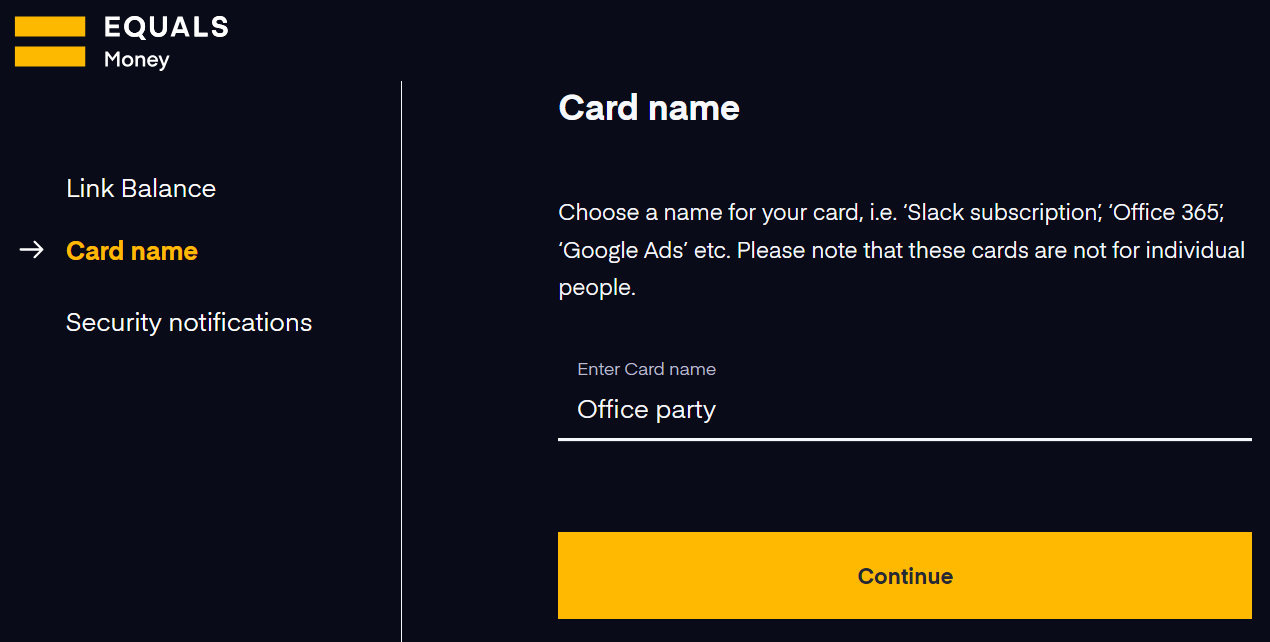
    Next, you will be asked to give the card a name. We recommend giving your card a name that refers to its intended purpose.

    Lastly, please select a team member to approve security notifications for online purchases.

    Setting limits

    It’s possible to set two types of spending limits:

    Spend limits

    To set a limit on a card, go to the “Cards” page of your account. You’ll be able to see all the Shared and Individual cards you have access to listed on this page. Select the card you want to set a limit for and a panel will appear allowing you to manage some card settings.

    Select the option for spending limits:


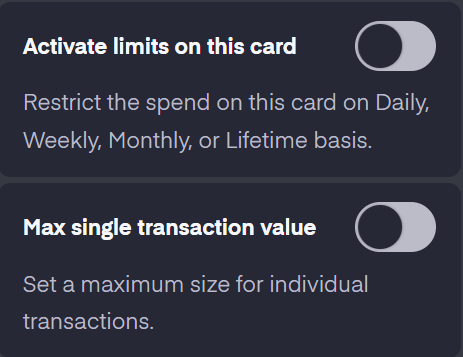
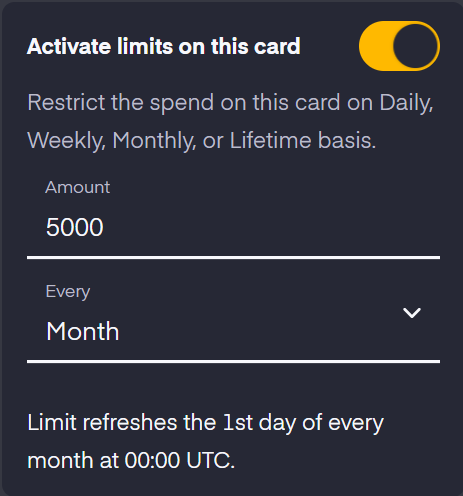
    You will need to use the slider by “Activate limits on this card”.

    Once that has been turned on, you will be able to set a value of the spending limit for that card, and the period that limit should cover:

    • Daily (Limit refreshes every day at 00:00 UTC.)
    • Weekly (Limit refreshes every Monday at 00:00 UTC.)
    • Monthly (Limit refreshes the 1st day of every month at 00:00 UTC.)
    • Lifetime (Limit does not automatically refresh.)

    Max single transaction limits

    You also have the option to set a maximum single transaction value, separate from the other limit. This means that no one transaction will be able to go over a certain limit.

    Make sure you press “Save” to save the limit.

  • XBO - Image What are attachments?

    Attachments allow you to upload documents to give more details on purchases. They can only be uploaded to card transactions, not payments.

    You may wish to upload receipts, invoices or other documents that give more information about what was expensed.  Owners, admins, viewers and accountants can view all attachments on the account. Payers and users can view their own attachments and any from balances they're a user on.

    The maximum file size for an attachment is 5MB. You can upload up to 10 attachments per transaction. The accepted file types are jpg, jpeg, png, pdf and eml.

  • XBO - Image How do I upload a receipt?

    Attachments can only be be uploaded to card transactions, not payment transactions.

    To upload a receipt:

    1. Go to the transactions page and use the search function to find the relevant transaction.
    2. Once you have found the transaction, click on it, and a panel will appear showing you more information on the transaction.
    3. On the panel, there is a box where you can click on “Add attachment” which will allow you to choose files from your system to upload.

    You can upload up to 10 attachments per transaction.

  • XBO - Image Assigning people to balances

    If you would like a member of your team to have access to money on your account, you will need to assign them to a balance, or multiple balances, after you create them. To do this go to the 'Balances' page of your account.

    You can either assign them to an existing balance on your account or create a new one. You can find out how to create a new balance here. Once you have created the new balance, follow the instructions below to assign someone to it.

    To assign them to an existing balance click the 'View' option on the balance tile:

    Next click the 'Manage' tab and then 'Add teams and people':

    On the next screen, you will be able to search for a person and assign them to that Balance.

    Next steps

    Now that you have assigned the balance, you can order a card which will draw from that balance.

  • XBO - Image What are individual cards?

    Individual cards are designed to be assigned to a specific named person on your Equals Money account. Individual cards can exist as virtual cards, or you can also request a physical version be posted to you. You can have a maximum of one physical card per person. Individual cards can be linked to multiple shared balances. Please note that if you decide to link a card to multiple shared balances, you cannot set spending limits.

  • XBO - Image How to add a recipient

    Go to the 'Recipients' page of your account and click the '+ Add recipient' button. We'll ask you for some basic information about your recipient. You'll need to enter the relevant bank details, which will be different depending on the country you are sending money to. You can also choose to add your recipient's email address to ensure an email is sent out to your recipient to let them know when you're sending them a payment.

    Before the recipient is added or any payments can be made, you'll be asked to verify the recipient via two-factor authentication for security reasons.

    Primary Owners, Owners, Admins and payers can all add recipients.

  • XBO - Image How to manage recipients

    You can edit and delete your recipients directly from your account. While you're on the Recipients page, select your chosen recipient and you'll see a menu appear.

    You'll be able to edit the reference and the recipient's email address. Some information can only be changed by deleting the recipient and adding it again.

  • XBO - Image How to make a single payment

    Primary Owners, Owners, Admins and Payers can make payments from the account page.

    To make a payment, simply go to the 'Payments' page of your account and choose the 'Make a single payment' option. If you've already saved a recipient you can select it, and if not you'll be taken to a screen which will allow you to create a new recipient.

    You can opt to make a payment with money from your account balance, or you can fund the order directly with a bank transfer. Once you've placed the order for a payment we'll email you a confirmation.

  • XBO - Image How to disconnect an accountancy integration

    If you want to disconnect from an accountancy integration completely, please sign in and click on your name (or your organisation's name) at the top and choose 'Account settings' and then 'Accountancy integrations'. Click the three dots by your integration and choose 'Disconnect account'. When the pop-up appears you will need to type 'disconnect' to confirm.

  • XBO - Image What's the difference between Individual and Shared cards?

    Individual cards are ordered for a specific person. All Individual cards start as virtual cards by default, after which you can decide if that card needs to be printed physically and sent to you. The cardholder can also use their individual card with Apple Pay, Google Pay or Samsung Pay. Individual cards can be assigned to, and spend from, more than one multi-currency Balance. The cardholder will be able to choose via their account which of their card Balances they want to spend from.

    Shared cards are not ordered in people’s names and should be named after cards in the specific use-case. Shared cards are virtual cards only, which means they can only be used for online purchases. Unlike Individual cards, Shared cards cannot be added to Apple Pay, Google Pay or Samsung Pay. A Shared card to be linked to one multi-currency Balance.

  • XBO - Image What is currency alignment?

    What is currency alignment?

    It's where we convert some money to the currency you're paying in to help cover the total payment amount. This happens when there isn't enough money in the payment currency, and you have enough money to pay the rest using other currencies. We could use many currencies to cover the payment.

    Example:

    1. You have 100 GBP in your GBP account. If you buy something for 50 GBP, no currency alignment happens.
    2. If you try to buy something for 150 GBP, and also have money in EUR account, we'll take the missing money from your EUR account. This will use the 100 GBP and convert EUR into 50 GBP. We could use many currencies to cover the 50 GBP.

    Which currencies can do a currency alignment?

    Currency alignment is active for 16 out of the 21 card currencies. The supported currencies are: GBP, EUR, USD, AED, AUD, CAD, CHF, DKK, HKD, HUF, JPY, NOK, NZD, PLN, SEK, ZAR. If you pay in one of the other five currencies on your card (CZK, ILS, RON, SGD or TRY), you must have money in that currency on your card. You can do this by sending funds in that currency or exchanging money in the Equals Money platform.

    What happens with payments made in non-card currencies?

    If you use your card to buy something in a non-card currency, there will be an exchange from the base currency on your account. If there isn’t enough money in the base currency to pay for the transaction, then there can be a currency alignment from one or more supported currencies into the base currency.

    Turning on currency alignment

    1. Go to the Balances page of your account.
    2. Click 'View' on the relevant balance tile and select the 'Manage' tab.
    3. Toggle the switch in the 'Currency alignment' section.


    Cash withdrawals

    Currency alignment must be on if you need to withdraw cash overseas as we charge the fee in base currency (GBP for UK, EUR for EU or USD for US).

    Statements

    Currency alignment transactions may show on your statement before the transactions themselves have been completed (as the currency alignment itself has been completed). Please view the transaction activity report to see all transactions including the pending ones.

  • XBO - Image How many Shared balances can an Individual card spend from

    A person can spend from an unlimited number amount shared balances, however, the person and their Individual card will need to be assigned to a shared balance by an Owner, Admin or Balance admin before they can spend any money from that balance. Note, you can only assign an Individual card to one balance if they have an active spending limit.

  • XBO - Image How to prevent ATM use

    It's possible to prevent someone on your account from using their cards at ATM by adding an ATM block.

    To do this:

    1. Go to the 'Cards' page select the relevant card
    2. Scroll to the end of the Card menu and choose 'Review card settings'
    3. On this page you can toggle the ATM block on or off
  • XBO - Image Who can annotate transactions?

    The person who made the transaction can annotate them. Admins, Owners, Accountants can annotate transactions of other people on the account. Balance admins can annotate their transactions and those of other people that happened on their balance. Only card transactions can currently be annotated.

  • XBO - Image Can I delete or change annotation fields if they become outdated?

    Please do this in Account settings > Annotations and integrations > Annotations. Only Owners, Admins and Accountant roles can change these fields.

    You cannot delete your custom annotation fields but you can archive them if you no longer want them to be displayed for new annotations. Annotations for transactions that have been made before the field was archived will remain visible to you. You can change the annotation field name, add new options into drop downs, and archive any options that become outdated.

  • XBO - Image How to set up new annotation fields and who can do that?

    Please do this in Account settings > Annotations and Integrations> Annotations. Only Owners, Admins and Accountant roles can set up these fields.

    There is one default field - notes. Additional fields can be set up that can be one of the following types: text, number, currency amount, checkbox and dropdown.

    Some examples of types of annotation fields you may want to create: chart of accounts with your custom categories, location of spend, team or project.

  • XBO - Image Is it possible to download my team’s annotations?

    You can download annotated transactions in bulk as a CSV from the “Transactions” page. Please use the download icon at the top right of the page and choose either Statement CSV or Transaction Activity CSV.

  • XBO - Image Can I filter on annotated / unannotated transactions?

    Yes, please select the filter icon on the top right of the “Transactions” page. One of the filters available here allows you to filter for unannotated transactions and draft and submitted annotations.

  • XBO - Image Who can see annotations that have been made on transactions?

    The person who made the transactions can see their own annotations. Admins, Owners, and Accountants can see transactions and annotations of other people on the account. Balance admins can see their transactions and those of other people that happened on their balance.

  • XBO - Image Can I edit annotations?

    Submitted annotations can only be edited by Owners, Admins and Accountants. If an annotation has been saved in draft, it can still be edited.

  • XBO - Image What is the difference between submitting annotations vs saving them as a draft?

    It’s possible to save an annotation as a draft and come back to it at a later date. Once you submit an annotation only Owners, Admins and Accountants can edit it.

  • XBO - Image How can I check if there are transactions that I need to annotate?

    You can see this on the “Transactions” page. There is a yellow outline on the transaction icon on every transaction that is yet to be annotated. There is a dashed outline on annotations that have been saved as a draft and a pencil icon in the table showing something has been annotated. There is no outline and pencil icon on transactions with submitted annotations.

  • XBO - Image How do I annotate a transaction?

    First, go to the 'Transactions' page, then click on the transaction you wish to annotate and click on “Add annotation” on the menu that appears.

    You will see fields appear to help you give details on your transaction. These fields are set by your organisation.

  • XBO - Image What are annotations?

    Annotations allow you to add notes and categorise spend with custom accounting categories or other tags set up by your back office team to fit your organisation's needs. Currently, only Card transactions can be annotated.

  • XBO - Image What currencies do you offer for international payments

    These are all our available currencies: AED, AUD, CAD, CHF, CZK, DKK, EUR, GBP, HKD, HUF, JPY, KES, MXN, NOK, NZD, PLN, RON, SAR, SEK, SGD, TRY, USD, ZAR.

  • XBO - Image How we safeguard your money

    Your money is held in a specially designated safeguarded bank account with a licenced credit institution that is separate from all other funds at the bank and our operating accounts. The account is only used to safeguard our customer’s money, and no one other than Equals Money Europe SA has any interest or right over the funds in the account. This way, if anything were to happen to Equals Money, your funds would be safe.

  • XBO - Image What is a Funds request?

    This allows your team to ask for additional money in a balance that they have access to. It’s an in-platform message delivered via email and push notification to designated Approvers. If they approve the request, the money will be transferred to the balance (provided that the account has enough funds).

    Owners can toggle this feature on and off to suit your business processes. If you are an Owner or Admin you can also top-up a balance without a prior funds request being raised.

  • XBO - Image How do I activate Funds requests?

    Only Owners on the account can activate Funds requests in the Account settings section accessed via the arrow in the top menu.

    Account settings > Requests > Enable Funds requests.

  • XBO - Image Who can make a Funds request?

    Owners, Admins and Payers can request funds to any Balance (excluding the account balance).
    Balance Admins can request funds to any Balances that they are Balance admin of and their sub balances.
    Balance Payers can request funds to any Balances that they are Balance payer on.
    Someone who has their own Individual Balance can request funds into their Balance.

  • XBO - Image Who can approve Funds requests?

    Owners and Admins can approve Funds requests by default.

    Balance Admins can also approve Funds requests, but only those raised on any of the sub-balances underneath the balances that they manage.

    Please note that Approvers will only be notified of incoming requests by email and push notification once the request reaches their specific Approval tier.

  • XBO - Image What are Approval tiers?

    Approval tiers is a setting which allows you to specify how many people you would like to approve each Funds request. Each Approval tier represents one approval that needs to be given from any of the approvers on that tier before the requested funds are credited to the specified balance.

    Each tier can have any number of approvers in it, having multiple people in each tier means that a Funds request will never be reliant on just one person being available to approve.

    The same people can be in one or more tiers. However each person can approve any request only once.

    For example: If you have three Approval tiers, this would mean that three separate people would need to approve each funds request before it is processed:

    First, a notification would be sent to everyone in tier 1.

    Once someone in tier 1 has approved the request, a notification will go to everyone in tier 2, and someone in that tier will need to approve before a notification goes to everyone in tier 3.

    As soon as someone approves in tier 3, the request is processed and the funds are automatically transferred to the balance as requested (provided that there are enough funds in the selected funding balance). Anyone who receives a notification can reject it, and the request would go no further.

    If you are happy to have the approval of just one person for all Funds requests, you can have only one tier. That tier could have multiple people in it,  all of whom would receive a notification of the request and all able to unilaterally approve any given Funds request.

  • XBO - Image How do I create a Funds request?

    If you are an Admin or Owner you are able to move funds freely between balances on the platform but you can also request funds into any balance if you wish to do so. Click on the ‘Add money’ button at the top of any of the following pages Overview, Transactions, Balances, Cards, and a pop-up will open giving you the option to either Move money or Request funds.

    Others with the ability to request funds will see the ‘Request funds’ circular button that’s shown on the top of the following pages: Overview, Transactions, Balances, Cards.

  • XBO - Image Can I cancel my open Funds request?

    You can cancel any of your own Funds requests which have not yet been approved. To do so go to the Overview page - Needs attention section where you will see how many open Funds requests you have. Click on ‘Manage’ and you will be able to click between any of your open requests with the option to Cancel each one. Approvers that have already been notified of your request will get an email notification of the cancellation and so will you.

  • XBO - Image How do I approve or reject Funds requests?

    To approve funds requests go to the Requests page by either clicking on the push notification or email notification you have received. You will be asked to sign in if you are not already logged in. Alternatively, go to the Overview page on your Equals Money account and in the 'Needs attention' section you will see how many Funds requests are awaiting your approval. Click on 'Manage' to view the Requests page.

    Approvers (people with roles of Admins, Owners and Balance admins) can see and approve requests in any tier. Each request can however be approved only once by the same person.

    For example, if you are an Admin or Owner and you approve at tier 1, you can’t also approve the same request at tier 2 or 3, etc.

    Approvers will only be notified of requests that have reached their approval tier. It is possible to add the same person to multiple tiers.

  • XBO - Image How am I notified of Funds requests?

    Once a Funds request is created a push and email notification is sent to the relevant people who can approve the request.

    Depending on the number of Approval tiers set on your account a notification would be sent to everyone in tier 1 first. Once someone in tier 1 has approved the request, a notification will go to everyone in tier 2, and someone in that tier will need to approve before a notification goes to everyone in tier 3. If tier 3 is the final tier on your account, once someone in this tier approves, the request is processed and the funds are automatically transferred to the balance as requested (provided that there are enough funds in the selected funding balance).

    Anyone who receives a notification can reject it, and the request would go no further. If this request had been approved already by previous tier(s), the person (people) who had approved it would receive a notification of the rejection that followed.

    If you are happy to have the approval of just one person for all Funds requests, you can have only one tier. That tier could have multiple people in it, all of whom would receive a notification of the request and all are able to unilaterally approve any given Funds request.

    Although Owners, Admins and Balance admins can approve any request at any tier by default, they only receive notifications for requests in the tiers that they’ve been physically added into. This ensures that they are not receiving unwanted notifications.

  • XBO - Image Do Funds requests apply to outbound payments?

    No. Funds requests only allow you to approve the transfer of funds to a balance on your Equals Money account. Funds requests Approvers cannot approve outbound payments from the account.

    To set up approvers for outbound payments please contact our customer services team and they will be happy to assist you.

  • XBO - Image Can I approve a Funds request that I have raised?

    No. It is not possible to approve funds requests that you have raised even if you are an approver. Depending on your specific Account role or Balance role you might be able to do an Internal transfer between balances on your account directly without the need to use Funds requests.

    Internal transfer between balances is available to Owners, Admins, Payers between any balances on the account and to Balance admins and Balance payers between the balances that they have either of those balance roles on.

  • XBO - Image Can I review a record of who approved a particular Funds request?

    Yes, both requesters and approvers can view who’s approved a particular request.

    Requesters can access this information on any of their requests that are not complete and require further approval via the Overview page under 'Needs attention' by clicking 'Manage' your open Funds requests.  Details of any Approval tiers and approvers that have already approved and ones yet to approve this request can be found there.

    Alternatively clicking on 'View request' in the email confirming the submission of your request takes you to the same place.

    Approvers can access information about any past approvers for any requests yet to be approved by them in the inspector area on the Requests page by clicking the 'View approvers' link.

  • XBO - Image How do I turn off Funds requests?

    If you wish to turn Funds requests off on your account you will need to have the Owner role.

    Go to the Account settings > Requests and toggle the feature off. You will need to ensure that any pending funds requests on your account have either been approved, rejected or cancelled before the feature can be turned off.

  • XBO - Image How will I know if my Funds request gets rejected?

    If your request gets rejected you will receive a push and email notification and will be able to see the rejection reason (where included). Approvers that have already been notified of your request will get an email notification of the rejection too.

  • XBO - Image Can I approve a Funds request even if there isn’t enough money in the balance to fund it?

    Whilst the request is being approved at any tier apart from the final tier it is possible to select a funding balance that doesn’t currently have sufficient funds in it. The funding balance will however have to be replenished in order to be able to approve the request from this funding balance at the final Approval tier. Only approvers in the final Approval tier are required to select the funding balance. All approvers in the previous tiers can leave the funding balance unselected when approving requests.

    Please note that the person who made the Funds request will only be notified of the approval once the funds have reached their desired balance.

  • XBO - Image Can I choose which balance and currency I want to use to fund any funds request?

    Funds requests approvers are able to select the funding balance and currency that they want to use to fund each request. Every approver can only choose to fund a request from the balances that they have access to.

    If you have more than one Approval tier set up, only the approvers in the last Approver tier will have to set the funding balance. Any approvers in the previous tiers will optionally be able to choose the funding balance but approvers in the tiers higher up can override the funding balance when they give their approval.

    For example: Admins and Owners can approve any requests across all balances and select to fund them from any balance and currency that’s enabled on the account.

    Balance Admins can only approve requests that have been raised on their sub-balances and fund them from any balance that they are Balance Admins of in any currency enabled on their balances.

  • XBO - Image If my account has multiple Approval tiers at which point is it decided where the Funds request will be funded from?

    Only approvers in the final Approval tier are required to select the funding balance. All approvers in the previous tiers can leave the funding balance unselected when approving requests.

  • XBO - Image How will I know that my Funds request has been approved?

    As soon as your request gets approved by the final Approval tier and the funds are credited to the balance you requested, you will receive a push and email notification.

  • XBO - Image Is there a limit on the number of approvers in each tier or on how many tiers can an account have?

    There are no limits on how many Approval tiers can an account have or how many approvers can be in each tier. Please note that only Owners can access the Account settings to configure this.

  • XBO - Image Can I choose in which currency I want the funds to be added to the balance when requesting funds?

    Requesters can ask for an amount of money in any currency already activated on their Balance. If another currency is required the Owner would have to activate that currency on the account or balance level first.

  • XBO - Image Is there a limit on how many open Funds requests a requester can have?

    Yes, the maximum number of open Funds requests per person is 10.

  • XBO - Image Do Funds requests expire if they are not approved or rejected?

    Yes, Funds requests expire after 1 month if they are not approved or rejected by then. An email notification will be sent to the relevant approvers and requester before expiry.

  • XBO - Image Can I see my open funds requests that are awaiting approval?

    You can see these on the Overview page. The “Needs attention” tile shows your open Funds requests. Click on “Manage” to click between any of your open requests.

  • XBO - Image Can I use Funds requests to ask for my card spending limit to be increased?

    No. Funds requests don’t affect the card spending limits. You can only use Funds requests to ask for additional funds to be added to your balance. If you need your card spending limit to be increased you will need to contact your manager directly to do this for you. There is currently no way of requesting changes to spending limits from within the platform.

  • XBO - Image Using your Equals Money Card with Google Pay

    Will Google Pay work with my Equals Money card?

    Yes, if you have an Equals Money Card, please go to your wallet app and add your Equals Money Card details.

    Can I make my Equals Money card the default card on Google Pay?

    Yes, simply open your Google Pay app after you’ve added the Equals Money Card, select the Equals Money Card and choose “Make default for contactless” from the Card Details menu.

    If I pause my Equals Money card can I still use it with Google Pay?

    No, pausing your card has the effect of freezing it for all types of transactions. 

    If I get a replacement Equals Money card will I need to update it on Google Pay?

    Yes, please add the details of your new card again via the app.

    Can I use my Equals Money card with Google Pay abroad as well as in the UK?

    Yes, you can use Google Pay wherever you see the contactless and Google Pay symbols.

    Can I use Google Pay online or in apps?

    Yes, you can use Google Pay to make payments with your Equals Money card online in a web browser or in apps wherever the merchant supports it.

    Is my information secure if I use Google Pay?

    When you make a transaction on Google Pay, your card number is not shared with the merchant you’re paying. A token is used instead to authorise the transaction.

  • XBO - Image Using your Equals Money card with Apple Pay

    Will Apple Pay work with my Equals Money card?

    Yes, if you have an Equals Money Card you can go to our app and add your card to Google Pay.


    Which devices can I use with Apple Pay and my Equals Money Card?

    Please see this guide from Apple on which device can use Apple Pay.

    How do I add my Equals Money Card to Apple Pay?

    To add your card, please open the Equals Money app, select the card you wish to add to Apple Pay and press “Add to Apple Wallet”. You will then be able to follow the instructions to add the card to Apple Pay.

    How do I make my Equals Money Card the default card on Apple Pay?

    Open your Apple Pay app, press and hold the Equals Money card and drag it to the front.

    If I pause my Equals Money Card can I still use it with Apple Pay?

    No, pausing your card has the effect of freezing it for all types of transactions. 

    If I get a replacement Equals Money Card will I need to update it on Apple Pay?

    Yes, please add the details of your new card again via the app.

    Can I use my Equals Money Card with Apple Pay abroad as well as in the UK?

    Yes, you can use Apple Pay wherever you see the contactless and Apple Pay symbols.

    Can I use Apple Pay online or in apps?

    Yes, you can use Apple Pay to make payments with your Equals Money card online in a web browser or in apps wherever the merchant supports it.

    Is my information secure if I use Apple Pay?

    When you make a transaction on Apple Pay, your card number is not shared with the merchant you’re paying. A token is used instead to authorise the transaction.

  • XBO - Image Why have I been asked to approve Funds request?

    Why am I being asked to approve a Funds request?
    If you see a funds request, you are an Approver and someone has asked for funds to be transferred to a specific balance.

    Who are Approvers?
    Approvers are people who can approve Funds requests.

    All Owners and Admins can approve requests across all balances. Balance Admins can only approve requests for their assigned balances and sub-balances.

    Who is notified of a Funds request?
    Normally, only people in the Approval tier who are Owners, Admins or a Balance Admin for the destination Balance.
    However, all Owners and Admins will be notified if no one on the approval tier meets the following criteria:

    • They are either a Balance Admin of the destination Balance, or an Owner or Admin
    • They have not already approved the request on a previous tier
    • They are not the person who requested the funds
  • XBO - Image Who issues Equals Money Cards?

    Money held on your Equals Money Card is safeguarded by your card issuer. A card issuer is a financial organisation that issues payment cards (debit, credit, pre-paid), and enables and authorises transfers of funds for the cardholders (e.g. when a cardholder is making a purchase with the card). You can find out more about safeguard here.

    Equals Money Cards are issued by Equals Money International Limited pursuant to licence by Mastercard International Inc. Equals Money International Limited is authorised by the Financial Conduct Authority (FCA) with the Firm Reference Number (FRN) 900493, to conduct electronic money service activities under the Electronic Money Regulations 2011.

  • XBO - Image How quickly will my funds be available in my account?

    In most cases, we expect that your funds will be available for withdrawal the day after the business day they are received.  Business days are any day other than weekends and US public holidays.

    In the case of ACH payments, funds are likely to take at least 48 hours to arrive in your accounts.

  • XBO - Image How to change the Balance an Equals Money card draws from

    To do this go to the Cards page of your account and click on the card you want to change. This will open up the card menu. The card menu will display the name of the balance the card is currently drawing funds from.

    To change this, select the name of the Balance and choose 'Assign card to new balance'.

    On the next page you can choose to assign the card to a different balance, or create a new balance.

  • XBO - Image What are balance roles?

    Each person assigned to a Balance must be associated with a specific balance role, which outlines their permissible actions and access within that designated Balance.

    You will also need to ensure your required features are active on each Balance. You can view and edit balance features via the “Manage” tab for each sub-balance.

    Here is a breakdown of the permissions granted to each role.

  • XBO - Image What does reverted mean?

    This happens to a card payment when a transaction is made but the transaction is reversed before the money is taken by the merchant.

    The money initially goes into a pending state when it is requested, then before the merchant takes the money it is reversed. The money therefore falls back into your available balance.

  • XBO - Image Approved email domains

    One of the ways we protect your account on Equals Money is by ensuring that only people with approved email domains can be added to your account. This gives you the option to only allow people with your company email address to be added to your account. You can add multiple email addresses to the list of approved emails.

    Only people with an account role of Owner can edit this list. Admins are able to view the list.

    To add email domains to your approved domains list:

    1. Click on your organisation's name at the top of your account page
    2. Go to 'Account settings'
    3. Go to 'Approved emails domains', which is in the security section.
    4. Click 'Edit email domain list'


    If you remove all the email addresses from the list using the 'x' on the tag, you will be able to add any email domain.

    If you attempt to add a person who has an email domain that is not on your approved list, you will see an error message that says:

    'This user cannot be added. The email domain is not added to your approved email domain list.'

  • XBO - Image How to create a Balance

    You can create either a Shared or an Individual Balance.

    Shared balances are best if a project team or department need to share funds. They can also be used for payments such as subscriptions which are managed by multiple people. Individual balances work well if you want a designated pot for one person's allocated spend.

    How to create an Individual Balance

    1. Go to the Balances page.
    2. Select 'Create Balance' which is underneath the view of the currency breakdown of your funds.
    3. Choose Individual Balance.
    4. Choose someone on your account to assign the Balance to.
    5. Select a Parent Balance. Anyone in charge of the Parent Balance will be able to move money to any of the Balances under it.
    6. Select the currencies available to this Balance. You can select any of the currencies available in the parent Balance.

    How to create a Shared balance

    1. Go to the Balances page
    2. Select 'Create Balance' which is underneath the view of the currency breakdown of your funds
    3. Choose Shared Balance.
    4. Choose a name for your Shared Balance, e.g. 'Slack subscription' or 'Office xmas party'.
    5. Select a Parent Balance. Anyone able to manage the Parent Balance will be able to move money to any of the Balances under it.
    6. Turn on any features you want to be available for this balance. You can only choose features that are available on the Parent Balance.
    7. Lastly, select the currencies available to this Balance. You can select any of the currencies that are available in the Parent Balance.

    To understand how to assign people to Balances and how to choose management and access permissions for Balances, please read our walkthrough.

    We recommend using multiple Balances on your account to allow you to structure pots of funds in a way that optimises your money management. Remember, you can have multiple layers of Balances.

    For example:
    Your first and highest level balance is always your Account Balance.

    Under your Account Balance, you could have a 'Marketing' Balance. You can assign your Head of Marketing to manage all the funds in this Balance.

    Under the 'Marketing' Balance you may choose to have an 'Online Ad Spend' Balance. The Head of Marketing can access this, and may assign a Performance Marketer in their team to this sub-Balance.

    Under the 'Online Ad Spend' Balance you may choose to have individual balances for 'Google Ads' and 'Facebook Ads'.

  • XBO - Image How can I report fraud?

    Please contact us immediately if you have any suspicions of fraudulent activity on your account with us.

    You can find advice on avoiding fraud and scams here.

  • XBO - Image Why can't I see my Spend card?

    You might not be able to see your card if it has been closed. If you have a Spend card and your business has recently upgraded to the new Equals Money platform, you might find that you are not able to see or use your Spend card.

    If this leaves you without a card to use, you will need to get a new Equals Money card. To do this you will need to sign in to your Equals Money account. Go to the normal sign-in page, and once you have entered your details you will see the Equals Money account available for you to select. Go to the Cards page. Choose 'Create Card' to order yourself a new card. Individual cards work similarly to Spend cards.

    If you do not see this option, you may need someone else in your organisation to order a card for you. Please speak with the person who manages your Equals Money account to arrange a new card.

  • XBO - Image Moving to your EU account

    Your new account will come with some exciting new benefits:

    • Send payments via SEPA Instant. We're thrilled to offer you SEPA Instant to allow you to send fast payments in Europe. This option will only be available on your new European account.
    • Use a European IBAN. You will be able to use a Europe-based IBAN (a Belgian IBAN). This will provide more flexibility for partners who prefer to pay into a European account.
    • Access a support team in your time zone. Our knowledgeable support team based in Europe will be available in Central European Time, operating Monday to Thursday from 09:00–17:00, and Friday from 09:00–16:00.
  • XBO - Image What is the cost of the Equals Money platform?

    You can find the price of the Equals Money platform on our pricing page: https://equalsmoney.com/pricing

  • XBO - Image What's the difference between the Transaction Activity CSV and the Statement Activity CSV?

    Please use the Statement if you only want to see completed transactions (for example for reporting). Use Transaction activity to see all transactions (for example, to investigate activity on your account).

    Statement CSV

    • Only completed transactions will are included.
    • Available from account creation date to yesterday.
    • Choose a Balance you want to report on
    • Choose the currencies you want to report on.

    Transaction activity CSV

    • Includes all transactions on your account. This includes pending transactions, declined transactions and cancelled transactions.
    • Available from account creation date to today.
    • Choose to apply a filter from the transaction page. You can choose: transaction status, transaction type, attachments, annotations, and balance.
  • XBO - Image Can I use Single Sign On (SSO) for my organisation?

    Yes, please get in touch with our team to discuss pricing options.

  • XBO - Image How do I change my password?

    If you are able to access your account, you can change your password from within your account.

    Please follow these steps:

    1. Click on the name at the top of your account page. This will either be your name, or the name of your organisation.

    2. Select “My details”.

    3. Choose “Password” and follow instructions from there.


    If you cannot access your account, please click 'Sign in' and then choose 'Can't log in to your account?'. You will need to enter your email address and then we will send you a link allowing you to create a new password.

    Whenever you sign in, please ensure you are accessing the genuine site. The URL for the sign in page begins auth.equalsmoney.com. Scammers sometimes try to spoof this page by using very similar URLs that they list on search engines.


  • XBO - Image Changes to the statement and transaction activity CSV

    We’ve made some improvements to the statement and transaction activity CSV download. The first round of changes occurred in March and are detailed in the second half of this page.

    The second part of the changes occoured in August, these are detailed below. Please note the latest change alters the structure of the download, so any custom automations your business may have set up will need review if they relied on the old CSV structure. Please look through the changes carefully if you think this might apply to you.


    Changes released in August 2025

    Additional columns

    New column: Group transaction ID column for auto exchanges

    Related card and auto exchange transactions now have the same ID in the group transaction ID field. This helps to identify linked transactions.


    Removed columns


    We removed the created date and completed date, as they have been replaced by the new UTC date fields that are Excel-friendly.

    We removed the 'Total credited / debited' and 'Total credited / debited excluding fees' columns. These have already been split into separate columns for credits and debits.

    Changes to existing columns

    More clarity for card and auto exchange

    Auto exchange descriptions will include the description of the related card transaction.

    When there is a card transaction that has one auto exchange (two currencies total), we added the exchange information to the “Exchange rate”, “Payment / Exchange currency” and “Payment / Exchange amount” fields of the card transaction row.

    When a card transaction involves two or more auto exchanges (3+ currencies involved in the transaction) some columns will contain different information:

    - In the “Exchange rate” column instead of a rate (e.g. 1.34), you’ll see “Multiple currencies”.  
    - In the “Payment/exchange currency” column instead of a currency (e.g. USD), you will see “Multiple exchanges”.  
    - In the “Payment / Exchange amount” column instead of an amount (e.g. 400), you will see “Multiple amounts”.

    Transactions are sorted by 'Created date'

    Previously, all transactions were grouped by Balance, then sorted by created date/time. We’ve updated this so that all transactions are sorted by 'Created date (UTC)' column, with the oldest transactions at the top.

    If your download has no transactions, we'll make this clear

    If you request a file and there are no transactions, you’ll see a message confirming this. This will reduce confusion over whether there was an error or simply no transactions to display.

    Renamed fields

    We’ve renamed some fields to improve the clarity:

    Existing nameNew name
    CurrencyBalance currency
    Local currencyPayment / Exchange currency
    Local amountPayment / Exchange amount
    Name of sender / beneficiaryName of sender / recipient
    Bank identifier of sender / beneficiaryBank identifier of sender / recipient
    Account identifier of sender / beneficiaryAccount identifier of sender / recipient
    Address of sender / beneficiaryAddress of sender / recipient
    Bank of sender / beneficiaryBank of sender / recipient
    Bank address of sender / beneficiaryBank address of sender / recipient

    Coming soon

    New column: Team information added to statement CSV

    On the statement CSV, if a person is in a team, the team name will be shown on the transaction row. If a person is in multiple teams, all teams will be listed in alphabetical order separated by a comma.

    If a person is not in a team, it will be empty. The 'Team(s)' column will be after the “Name” column.

    Internal transfer improvements

    The description for internal transfers will show the “To” balance on the debit leg, and the “From” balance on the credit leg. They will also show the name of the person who actioned the internal transfer.

    Changes that occurred in March 2025

    Simplified date format

    For easier filtering by transaction date, we have added columns in YYYY-MM-DD HH:MM:SS format. This is recognised as a date by Excel.

    Separated credit and debit columns

    We've added separate columns for credited and debited amounts, rather than just the combined column.

    “Reference” column moved

    This has been moved to after the “Description” column.

    'Running balance' column moved

    This is now after the 'Debited excluding fees' column and before 'Exchange rate'. This means you can easily view this with the other amounts.

    'Description' for payments

    We’ve made this simpler, so that the payment network (SWIFT, Faster Payment etc.) is only shown in the “Type” column.

    Improved information for exchanges

    The “Description” column for credits and debits will be enhanced to show the currency exchanged. For example, if funds are being taken from your GBP balance and exchanged into USD, the description for the debit from the GBP balance would show “To USD” and the description for the credit column will show “From GBP”. Similarly, for auto exchanges (currency alignment), we now show the currency exchanged. For example, “To GBP for Auto exchange” and “From USD for Auto exchange”.

    Columns for “Local currency” and “Local amount” will show the other side of an exchange, in the same row to allow you to understand the exchange at-a-glance.

    Exchange
    Auto exchange

    “Balance Hierarchy” corrected

    This now displays accurately. For example, if a transaction took place on the LinkedIn Balance, you might see “Marketing/Socials'. Balance hierarchy does not show for the Account Balance or the Balances directly under it (the first two rows in the example below).

    Header improvement

    Headers no longer repeat above each Balance. Column headers only appear on the first row.

    Before
    After
  • XBO - Image What is instant bank transfer?

    Instant bank transfer is a way of paying money into your Equals Money account. It uses Open Banking to connect directly with your banking app, allowing you to transfer money quickly and securely.

    Go to “Add money” as usual, and pick “Instant bank transfer”

    Select your banking app, and confirm the payment

    If you’re on a desktop, you will need to use your smartphone camera to scan the QR code generated, and follow the steps on your banking app.

    Your money should credit in your account in seconds.

  • XBO - Image How to transfer money between Balances

    Please go to the Balances page, click 'View' on the tile of the Balance you want to move money to and then click 'Internal transfer' at the top right of your page. You will be able to choose which Balances you are transferring to and from, and how much you would like to transfer.

    If you have payments enabled on your account, you can go to the Payments page, and then click 'Internal transfer' from there.

    Roles
    To make a transfer, you will need to have the role of Owner or Admin on your account, or a Balance Admin or Balance Payer on the Balance you are paying from.

  • XBO - Image Can I send multiple payments at once in bulk?

    Access to bulk payments is currently available to some customers on request, but will be rolling out further very soon.

    Our batch payments functionality allows you to send upto 10,000 payments at a time, in 35 currencies.

  • XBO - Image What are the different transaction types?

    Exchange: A single currency exchange between two currencies.

    Payments: An order for an outbound payment to a recipient. Note that if making a payment with exchange, you'll have both an exchange transaction and a payment transaction.

    Deposit: A sum received into an account via an inbound transfer.

    Forward contract: A foreign exchange (FX) order booked to purchase at a specified price, on a future date. You can choose to either settle the full trade at the end of the contract or drawdown the contract early.

    Drawndown: An order that is booked when you choose to settle some or all of your forward contract trade earlier than the agreed future date.

    Card: A card payment to a merchant.

    Card check: A merchant-initiated check on a card, to ensure that they've got the correct details and that the card is active.

    Card refund: A refund from a merchant back to a card. For example, after a purchase has been returned.

    Cash withdrawal: A cash withdrawal made with a card.

    ATM: Instance of a card being used at an automated teller machine (ATM), but that didn't result in a cash withdrawal. For example, someone checking their balance.

    Cashback: A cash withdrawal made as part of a card payment.

    Chargeback: A charge that is returned after a customer successfully disputes a transaction on their account.

    Unload: A transaction during which money is removed from a budget. For example, transferring funds to another budget.

    Load: A transaction during which money is added to a budget. For example, receiving funds from another budget.

    Other credit: A credit transaction that doesn't fall under one of the other credit transaction types.

    Other debit: A debit transaction that doesn't fall under one of the other debit transaction types.

  • XBO - Image What are the different card transaction statuses?

    Pending: A transaction that hasn't been fully processed yet. This includes card payments and any order (exchange, payment, deposit) that has been debited from a budget but has not yet fully completed.

    Complete: A transaction that has successfully been completed. This includes all completed types of orders and currency balance credits/debits. For example, a card transaction that has been fully processed by a merchant. This is a final status.

    Card check: A merchant-initiated check on a card, to ensure they've got the correct details and that the card is active. Once they've completed their check, the status will change to pending if successful or declined if unsuccessful.

    Declined: A transaction that has been declined. This is a final status.

    Reverted: A card transaction that has been cancelled before it was fully processed. This is a final status.

    Refunded: A card transaction that has been refunded.

    Open: A forward contract which has been booked and had its deposit paid. Once it has been fully paid, the status will change to complete.

  • XBO - Image How do I check my card balance?

    Your card will be linked to a Balance on your organisation's account. To check how much is in the Balance linked to to your card:

    1. Go to the Cards page
    2. Click on the Card you want to check
    3. On the menu that appears, look under 'Balance and spending limits'

    This will show you how much you have avaliable in the Balance currently linked to your card. You may see that you have money avaliable in multiple currencies.

    You may also see spending limits listed here. These mean that you will be limited in how much you can spend in a specific time period, or per transaction, regardless of the amount of money available.

  • XBO - Image How can I find out my payment purpose code?

    You can use our handy calculator to work out what the purpose code for your payment should be. Many payments will not need a purpose code.

  • XBO - Image Which currencies will be available on my new SPPVGB3L account

    We're pleased to be able to upgrade you to your new multi-currency account. Here are the currencies you now have access to:

  • British pound sterling
  • Euro*
  • United States dollar
  • United Arab Emirates dirham
  • Australian dollar
  • Bulgarian lev
  • Bahraini dinar
  • Bermudian dollar
  • Canadian dollar
  • Swiss franc
  • Chinese yuan
  • Czech koruna
  • Danish krone
  • Hong Kong dollar
  • Hungarian forint
  • Israeli shekel
  • Indian rupee
  • Jordanian dinar
  • Japanese yen
  • Kenyan shilling
  • Kuwaiti dinar
  • Moroccan dirham
  • Mauritian rupee
  • Mexican peso
  • Norwegian krone
  • New Zealand dollar
  • Omani rial
  • Polish złoty
  • Qatari riyal
  • Saudi riyal
  • Swedish krona
  • Singapore dollar
  • Thai baht
  • Turkish lira
  • South African rand


    *SWIFT payments only.
  • Please contact your account manager if you have any questions.

  • XBO - Image Is there a fee for charities and non-profits?

    Charities and non-profits are subject to the fees we set out on our pricing page.

    There is no separate pricing for charities and non-profits, the platform is not free for these organisations.

  • XBO - Image On the “People” page I can see “Invited/Invite expired/Created” status for people, what does this mean?

    Your team may move through different statuses as they set up their account:

    Created: This means that their profile has been created on the system but they have not yet been invited to the Equals Money platform.

    Invited: This means they have been sent an invite to create a password and get access to your organisation’s Equals Money account, but they have not actioned it.

    Invite expired: This means that an invite was sent to this person but it has now expired. Invitations expire after 7 days. Please send them a new one if you still wish them to have access to the account.

  • XBO - Image How do I change the PIN number on my Equals Money card?

    You can change your PIN on the Cards page of your account. Click on your card and choose 'Review card settings' at the bottom of the menu. On the next menu, choose 'Reset PIN' and enter your new PIN.

    Once you have changed your PIN online, you will need to go to an ATM to confirm the change. You will need to either check your balance or make a withdrawal.